사용법 요약 :
1. 레이어마스크에 alt-click 하면 레이어마스크의 흑백이미지가 보임
2. 레이어마스크를 이미지에 overlap 해서 보려면 \ 누르면 됨
View Your Layer Mask As A Rubylith
다음 링크에 설명 잘 나와 있음
레퍼런스 : Understanding Layer Masks In Photoshop
As I mentioned at the beginning of this discussion, layer masks allow us to control the transparency of a layer, but unlike the Opacity option which controls overall transparency, layer masks allow us to set different levels of transparency for different areas of the layer (although technically, you could use them to control the overall opacity as well, but the Opacity option already handles that very well and layer masks are capable of so much more)...

Tuesday, October 21, 2014

Sunday, June 22, 2014
pdf 페이지들을 image 로 저장하려면
OS X 의 automator 를 쓰면 간단하다.
1. Ask for Finder Items ... pdf 파일 선택하는 다이얼로그 띄워줌.
2. Render PDF Pages as Images ... 페이지들을 이미지로 만들어줌.
3. Move Finder Items ... 결과 파일이 들어가는 폴더 지정해줌
pdf 에 따라 resolution 이 다르므로 photoshop 에서 열어 dpi 를 확인해보고 2단계의 resolution 을 고쳐주면 좋다.
키워드 : pages images export save
링크 : Using Automator to Convert PDF to JPEG
1. Ask for Finder Items ... pdf 파일 선택하는 다이얼로그 띄워줌.
2. Render PDF Pages as Images ... 페이지들을 이미지로 만들어줌.
3. Move Finder Items ... 결과 파일이 들어가는 폴더 지정해줌
pdf 에 따라 resolution 이 다르므로 photoshop 에서 열어 dpi 를 확인해보고 2단계의 resolution 을 고쳐주면 좋다.
키워드 : pages images export save
링크 : Using Automator to Convert PDF to JPEG
여러 이미지를 포토샵에서 레이어로 불러오려면
포토샵에서 바로 하는 법
File > Script > Load Files into Stack...
어도비 브릿지에서 하는 법
Adobe Bridge 로 이미지들을 선택한 후
Tools > Photoshop > Load Files into Photoshop Layers 를 한다.
키워드 : photoshop, layer, load as images, image files, layers, one single file
링크 : Open Multiple Images As Photoshop Layers
File > Script > Load Files into Stack...
어도비 브릿지에서 하는 법
Adobe Bridge 로 이미지들을 선택한 후
Tools > Photoshop > Load Files into Photoshop Layers 를 한다.
키워드 : photoshop, layer, load as images, image files, layers, one single file
링크 : Open Multiple Images As Photoshop Layers
Thursday, May 22, 2014
anigif 만들기
여러 이미지 파일들을 레이어로 불러오기
1. adobe bridge 에서 이미지파일들 선택한 후
2. Tools > Photoshop > Load Files into Photoshop Layer 선택
Photoshop 에서 anigif 만드는 법
1. Window > Timeline 으로 타임라인 창 띄움
2. 레이어 켜고 끄기 이용해서 첫프레임 만듬
3. 타임라인 창에서 Create Frame Animation 버튼 누름
이걸로 첫프레임 만들어졌음.
4. 타임라인 창에서 duplicate selected frames (새레이어 버튼처럼 생겼음)눌러 새 프레임 만듬. 이것이 두번째 프레임.
5. 레이어 켜고 끄기 이용해서 두번째 프레임 만듬
6. 4와 5를 반복하여 그 뒤의 프레임들을 만듬
이것을 gif 포맷으로 저장하는 법
1. File > Save for Web 함
2. 창에서 GIF 포맷 선택하고 256 컬러, Dither 는 100% 선택.
3. Save 함
Dither 를 높여주지 않으면 웹에서 흔히 보는 컬러가 부족해 깨져보이는 gif 가 만들어지게 됨.
키워드 : 애니메이션 분석에 유용한 팁
검색어 : 포토샵으로 animated gif 만들기
1. adobe bridge 에서 이미지파일들 선택한 후
2. Tools > Photoshop > Load Files into Photoshop Layer 선택
Photoshop 에서 anigif 만드는 법
1. Window > Timeline 으로 타임라인 창 띄움
2. 레이어 켜고 끄기 이용해서 첫프레임 만듬
3. 타임라인 창에서 Create Frame Animation 버튼 누름
이걸로 첫프레임 만들어졌음.
4. 타임라인 창에서 duplicate selected frames (새레이어 버튼처럼 생겼음)눌러 새 프레임 만듬. 이것이 두번째 프레임.
5. 레이어 켜고 끄기 이용해서 두번째 프레임 만듬
6. 4와 5를 반복하여 그 뒤의 프레임들을 만듬
이것을 gif 포맷으로 저장하는 법
1. File > Save for Web 함
2. 창에서 GIF 포맷 선택하고 256 컬러, Dither 는 100% 선택.
3. Save 함
Dither 를 높여주지 않으면 웹에서 흔히 보는 컬러가 부족해 깨져보이는 gif 가 만들어지게 됨.
키워드 : 애니메이션 분석에 유용한 팁
검색어 : 포토샵으로 animated gif 만들기
Saturday, November 9, 2013
Wednesday, November 6, 2013
저작권 없는 이미지
저작권 없는 이미지 사용할 수 있는 곳
1. flickr.com
→ Creative Commons-licensed content 만 찾도록 체크하고 검색하면 된다.
2. www.sxc.hu
→ Royalty free라고 된 사진들을 사용하면 된다.
3. pixabay.com
4. freephotosbank.com
5. stockvault.net
6. morguefile.com
키워드 : royalty free images
레퍼런스 :
블로그에 사진 넣으려는데 사진저작권 어떡하지?
저작권에서 자유로운 무료 이미지 얻을수 있는 사이트 추천
검색어 : 구글 > 저작권 사진
1. flickr.com
→ Creative Commons-licensed content 만 찾도록 체크하고 검색하면 된다.
2. www.sxc.hu
→ Royalty free라고 된 사진들을 사용하면 된다.
3. pixabay.com
4. freephotosbank.com
5. stockvault.net
6. morguefile.com
키워드 : royalty free images
레퍼런스 :
블로그에 사진 넣으려는데 사진저작권 어떡하지?
저작권에서 자유로운 무료 이미지 얻을수 있는 사이트 추천
검색어 : 구글 > 저작권 사진
Sunday, September 15, 2013
adjustment layer 를 밑에 있는 하나의 레이어에만 적용하도록 하는 방법
alt 를 누르고 레이어 사이를 클릭하면 됨.
How to make an adjustment layer to affect only one layer or one group of layers in Photoshop?
키워드 : 레이어, layer, just below, 적용, adjustment layer 를 바로 밑의 레이어에만 적용하는법
How to make an adjustment layer to affect only one layer or one group of layers in Photoshop?
키워드 : 레이어, layer, just below, 적용, adjustment layer 를 바로 밑의 레이어에만 적용하는법
Saturday, August 31, 2013
Tuesday, August 27, 2013
Decibel (Loudness) Comparison Chart
Decibel (Loudness) Comparison Chart
Here are some interesting numbers, collected from a variety of sources, that help one to understand the volume levels of various sources and how they can affect our hearing.
Environmental Noise | |
| Weakest sound heard | 0dB |
| Whisper Quiet Library at 6' | 30dB |
| Normal conversation at 3' | 60-65dB |
| Telephone dial tone | 80dB |
| City Traffic (inside car) | 85dB |
| Train whistle at 500', Truck Traffic | 90dB |
| Jackhammer at 50' | 95dB |
| Subway train at 200' | 95dB |
| Level at which sustained exposure may result in hearing loss | 90 - 95dB |
| Hand Drill | 98dB |
| Power mower at 3' | 107dB |
| Snowmobile, Motorcycle | 100dB |
| Power saw at 3' | 110dB |
| Sandblasting, Loud Rock Concert | 115dB |
| Pain begins | 125dB |
| Pneumatic riveter at 4' | 125dB |
| Even short term exposure can cause permanent damage - Loudest recommended exposure WITHhearing protection | 140dB |
| Jet engine at 100' | 140dB |
| 12 Gauge Shotgun Blast | 165dB |
| Death of hearing tissue | 180dB |
| Loudest sound possible | 194dB |
출처 : http://www.gcaudio.com/resources/howtos/loudness.html
키워드 : 감잡기, dB, 데시벨
Saturday, August 24, 2013
Modo 에서 Backdrop (image plane) 사용법
1. Backdrop item 을 생성한다.
2. 그림파일을 drag and drop 으로 Backdrop item 에 끌어 넣는다.
3. Backdrop item 의 Properties 에서 Projection Type 를 적절히 선택. 디폴트 값은 Front 이다.
4. 사이드 뷰의 백드롭 아이템을 만들때는 Projection Type 를 Right 나 Left 로 선택해서 방향을 맞춰준다.
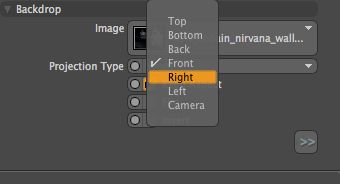
주의할 점은 사이드 이미지를 만들때 Backdrop item 을 Rotate tool 로 90도만큼 돌려서 만들면
view 가 perspective 상태에서는 보이지만 정작 viewport 를 left 나 right 로 만들 때 보이지 않는다는 점이다. 처음 쓸때 자주 저지르는 실수.
2. 그림파일을 drag and drop 으로 Backdrop item 에 끌어 넣는다.
3. Backdrop item 의 Properties 에서 Projection Type 를 적절히 선택. 디폴트 값은 Front 이다.
4. 사이드 뷰의 백드롭 아이템을 만들때는 Projection Type 를 Right 나 Left 로 선택해서 방향을 맞춰준다.
주의할 점은 사이드 이미지를 만들때 Backdrop item 을 Rotate tool 로 90도만큼 돌려서 만들면
view 가 perspective 상태에서는 보이지만 정작 viewport 를 left 나 right 로 만들 때 보이지 않는다는 점이다. 처음 쓸때 자주 저지르는 실수.
Friday, August 23, 2013
Wireframe, topology 관련 자료
와이어프레임 및 토폴로지 관련 자료
http://www.gotwires.info/search/label/Steven%20Stahlberg
Realistic Human Face Modeling
http://www.phungdinhdung.com/Studies_paper/Realistic_face_modeling.shtm
키워드 : 와이어, character, human modelling, 3D
http://www.gotwires.info/search/label/Steven%20Stahlberg
Realistic Human Face Modeling
http://www.phungdinhdung.com/Studies_paper/Realistic_face_modeling.shtm
키워드 : 와이어, character, human modelling, 3D

Thursday, August 22, 2013
modo 의 Center Selected 와 vert.set x 0
다음은 버텍스의 x 값을 0 으로 만들어주는 두가지 방법 즉
Center Selected (vert.center x) 와 vert.set x 0 을 비교한 것이다.
vertex 하나에 대해서는 둘다 결과가 같지만
여러 vertices를 선택하는 경우 결과는 달라진다.
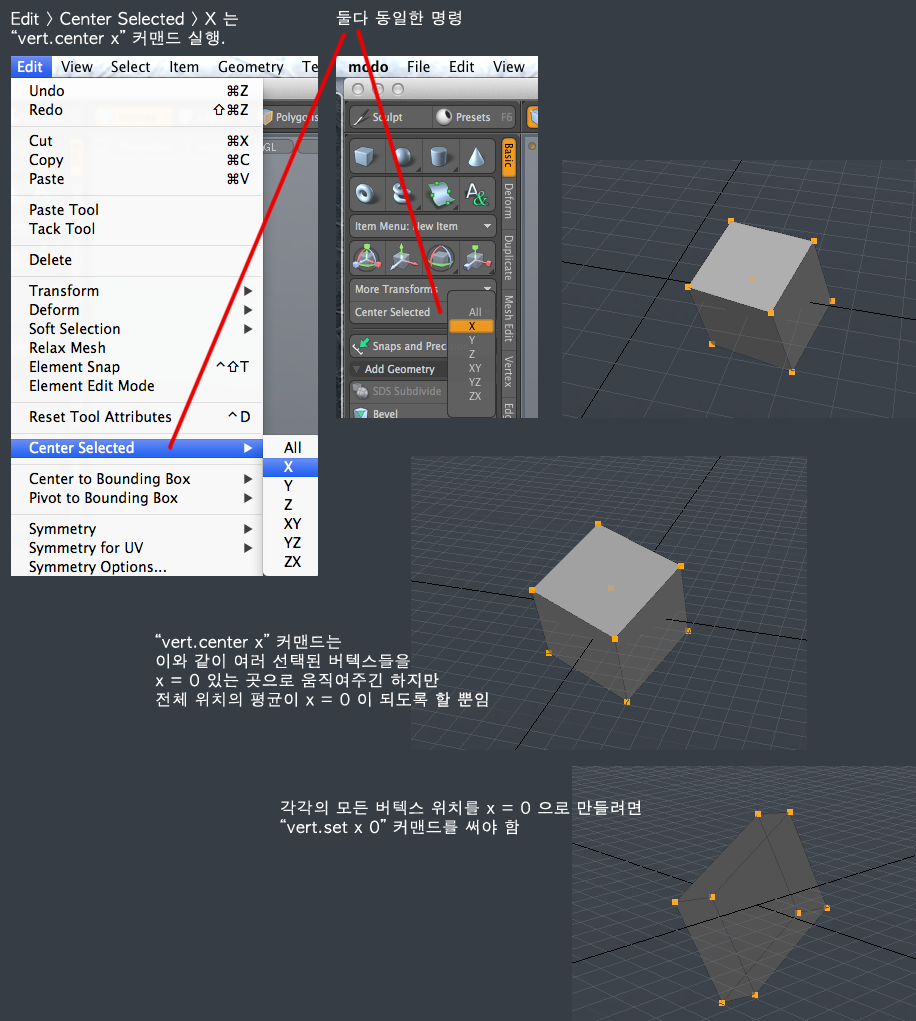
Center Selected (vert.center x) 와 vert.set x 0 을 비교한 것이다.
vertex 하나에 대해서는 둘다 결과가 같지만
여러 vertices를 선택하는 경우 결과는 달라진다.
modo 에서 완전히 겹쳐져 있는 두개의 vertex 중에서 하나만 선택하는 법
tab 을 누르면 분리되어 보이므로, 둘중 하나를 선택하는 것이 가능해진다.
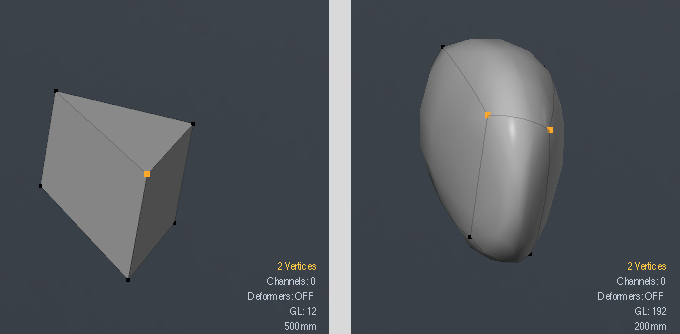
키워드 : select, vertices, exactly, same position, 2 vertices
키워드 : select, vertices, exactly, same position, 2 vertices
Wednesday, August 21, 2013
modo bridge tool 의 다른 용도
다음과 같이 구멍을 뚫을 때도 사용 가능.
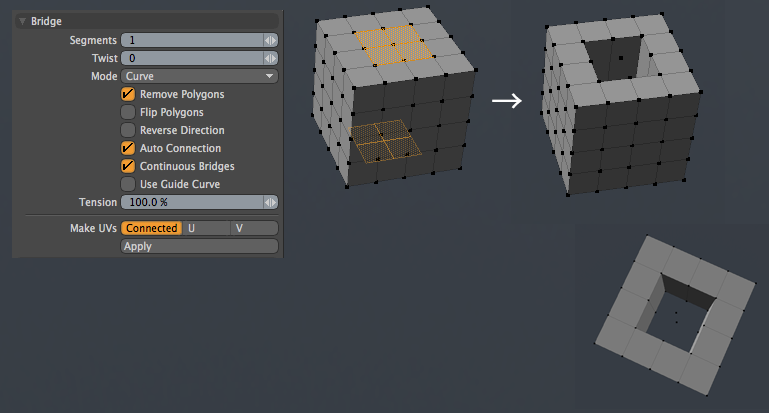
그냥 디폴트 세팅으로 하면 된다.
(잘 보면 구멍 뚫린 곳에 버텍스는 남아 있다)
레퍼런스 : Topic - Easy way to create doors and windows opening in a wall? - Single Post View
그냥 디폴트 세팅으로 하면 된다.
(잘 보면 구멍 뚫린 곳에 버텍스는 남아 있다)
레퍼런스 : Topic - Easy way to create doors and windows opening in a wall? - Single Post View

Tuesday, August 20, 2013
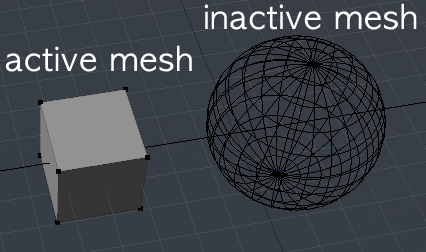
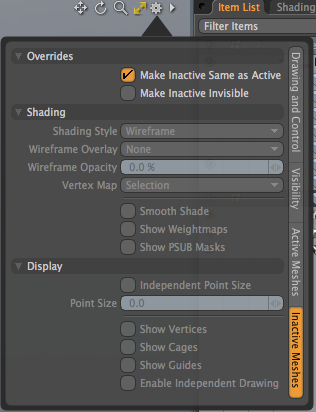
Modo에서 Inactive Meshes가 wireframe으로 안보이게 설정하려면
디폴트로는, 현재 오브젝트가 아닌 다른 오브젝트들은 inactive mesh 라고 해서 다음과 같이 와이어프레임으로만 보인다.
모든 오브젝트를 동일하게 보이게 하려면, 뷰포트 우측 위 기어 모양 아이콘 누르고 다음과 같이
Make inactive same as active 로 설정해주면 된다.
모든 오브젝트를 동일하게 보이게 하려면, 뷰포트 우측 위 기어 모양 아이콘 누르고 다음과 같이
Make inactive same as active 로 설정해주면 된다.
Subscribe to:
Posts (Atom)